Pick the motion output
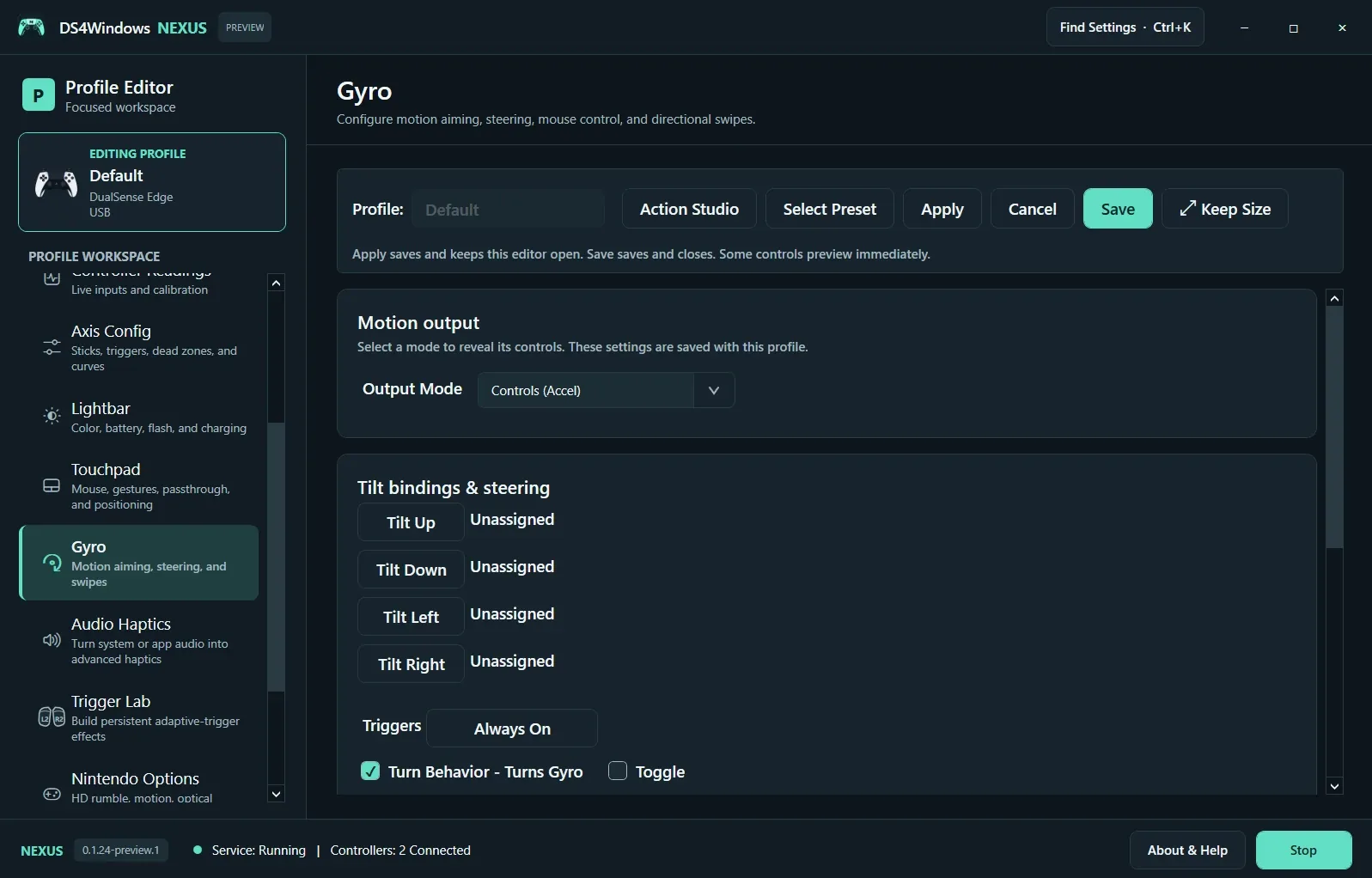
Open Gyro and select Output Mode. Mouse aiming, controls based on acceleration, directional bindings and steering serve different tasks. Choose the mode for the game you are configuring; the Controls (Accel) screen shown here is one example rather than a universal aiming setup.
Choose when motion is active
Use Triggers to define activation and check whether Toggle is enabled. Always On applies continuously. A hold-to-aim activation is often easier to evaluate because you can clearly compare active and inactive motion. Assign tilt directions only when you intend those movements to become actions.
Calibrate and test
Rest the controller before calibration or runtime gyro-bias reset. Test slow motion first, then adjust sensitivity within the chosen mode and the game. If aiming drifts, check the resting baseline and activation state. For flick stick, calibrate against the game’s actual camera sensitivity; a profile from another game may not rotate the camera correctly.
Screenshot values are examples, not recommended settings for every controller. Save a separate profile before experimenting.