
Installation at a Glance
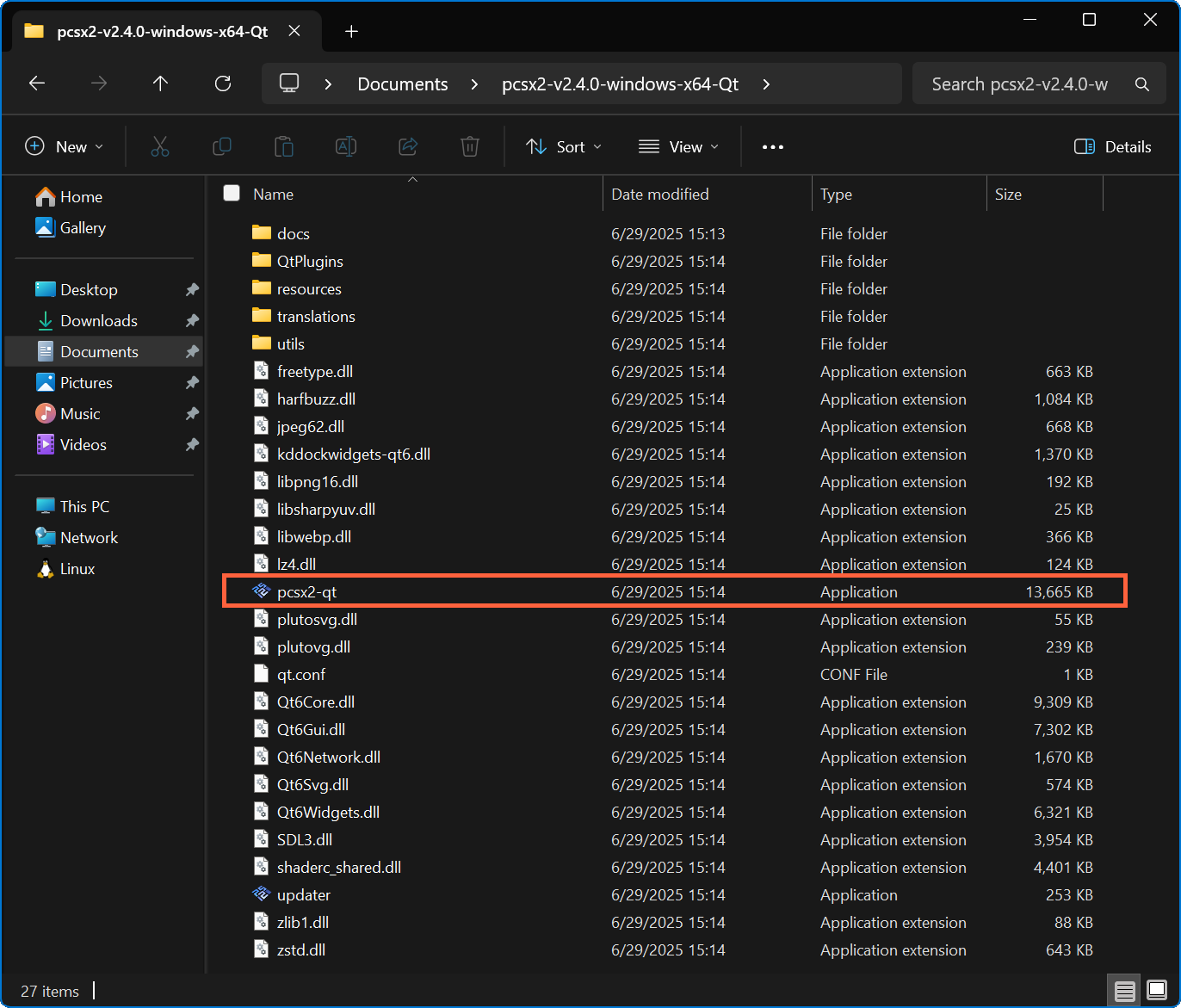
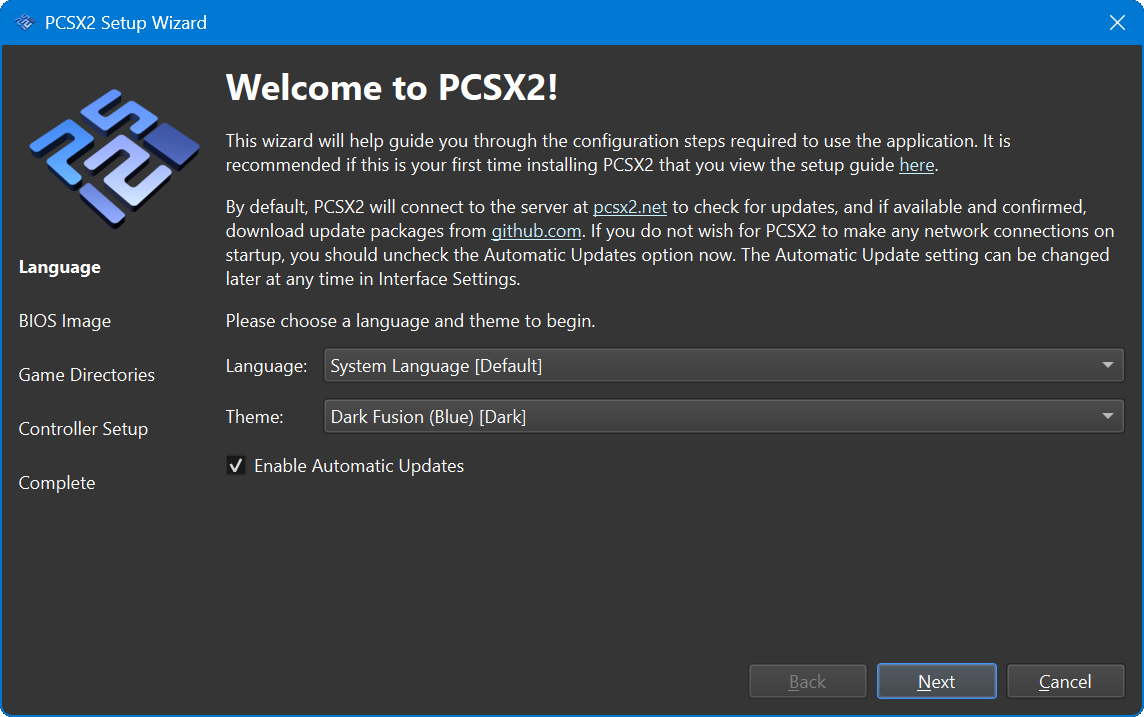
PCSX2 is our starting point for PS2 emulation on a desktop PC. Prepare your own console BIOS, check the requirements for your games, and configure player one before changing graphics settings.
What you need before installing
- The current PCSX2 build for your operating system, from the official download page.
- A BIOS dumped from your own PS2 and your own game-disc dumps.
- A controller and a data-capable USB cable for the initial input check.
- Enough space for games, virtual memory cards and a separate backup.
PCSX2’s requirements distinguish lighter and heavier games. Minimum requirements are not a promise that a demanding title will run smoothly. Check the project’s current requirements and the compatibility entry for your exact game before buying hardware.
Install and complete the first-run wizard
- Get PCSX2 from the official site. Choose the Windows installer for a straightforward installation, or the portable archive if you want to manage the folder yourself. Extract the entire portable archive.
- Install the required runtime if prompted. PCSX2’s Windows guide specifies the x64 Visual C++ runtime. Use the official link in that guide rather than downloading individual DLL files.
- Prepare and select the BIOS. PCSX2 documents biosdrain and compatible console setup methods. Complete that process on your own PS2, copy the resulting files to your PC and select them in the wizard.
- Add your game directory. Keep a consistent folder for your disc dumps. Confirm the expected title appears, then check its compatibility notes.
- Configure player one and test a save. Map the controller before launching. Use the game’s own save function, exit cleanly and check that the memory-card save loads.
The BIOS-dumping method depends on your PS2 model. Follow the model-specific official instructions rather than buying a random memory card or assuming every slim console uses the same method.
PCSX2 controller setup with DualShock 4 or DualSense
Open Settings → Controllers. PCSX2 recommends SDL as the first input source. For official DualShock 4 and DualSense controllers, its Enhanced Mode enables additional LED and vibration handling. Select Controller Port 1 and use Automatic Mapping, then inspect each binding.
If you prefer a Nexus remap, bind the virtual device that Nexus creates. Avoid binding both copies to the same port. XInput is a fallback for an XInput device that does not work through SDL; it is not a required setting for every PlayStation controller.
A PS2 game’s pressure-sensitive face-button behavior is separate from modern analog triggers. Check the emulator’s binding options and the game’s requirements if a light press and a full press need different actions. Do not assume that DualShock 4 face buttons reproduce a DualShock 2’s pressure range.
Improve quality without losing a working baseline
- Run the game at default graphics settings and native resolution first. Confirm speed, audio and controls in actual gameplay, not only its opening menu.
- Increase internal resolution one step at a time. If performance drops, return to the last stable setting before trying unrelated CPU options.
- Keep fixes for a single game in its own settings. A workaround needed by one title may harm another.
- Back up memory cards before major updates. Keep an ordinary in-game save even if you also use save states.
Changing many settings together makes a problem difficult to reproduce. Note the PCSX2 version, game serial, renderer and the scene where the issue occurs when asking for help.
Common PCSX2 problems
| Problem | First action |
|---|---|
| No BIOS detected | Check the selected folder and the files produced by your console dump. PCSX2 does not include a BIOS. |
| Slow gameplay or broken audio | Return to defaults, lower resolution and compare the title with its compatibility notes. |
| Two menu moves per press | Inspect duplicate physical/virtual bindings and overlapping remappers. |
| One game fails while others work | Check the game-specific compatibility entry and verify the dump. Avoid applying a global fix immediately. |
| No controller input | Test the device, select the correct input source and remap Controller Port 1. |
Common questions
Is a PS2 BIOS required?
Yes. PCSX2 requires a BIOS dump from your console; the emulator download does not include it.
Can I use Nexus profiles?
Yes, when your controller is supported by Nexus. Select the virtual device in PCSX2 and avoid assigning both the physical and virtual device to the same player.
Will every PS2 game run at full speed?
No. Game compatibility and performance vary with the title, settings and hardware. Check the official compatibility database.
Official sources
Use the project or manufacturer’s current documentation for downloads, requirements and model-specific details.