Add a game
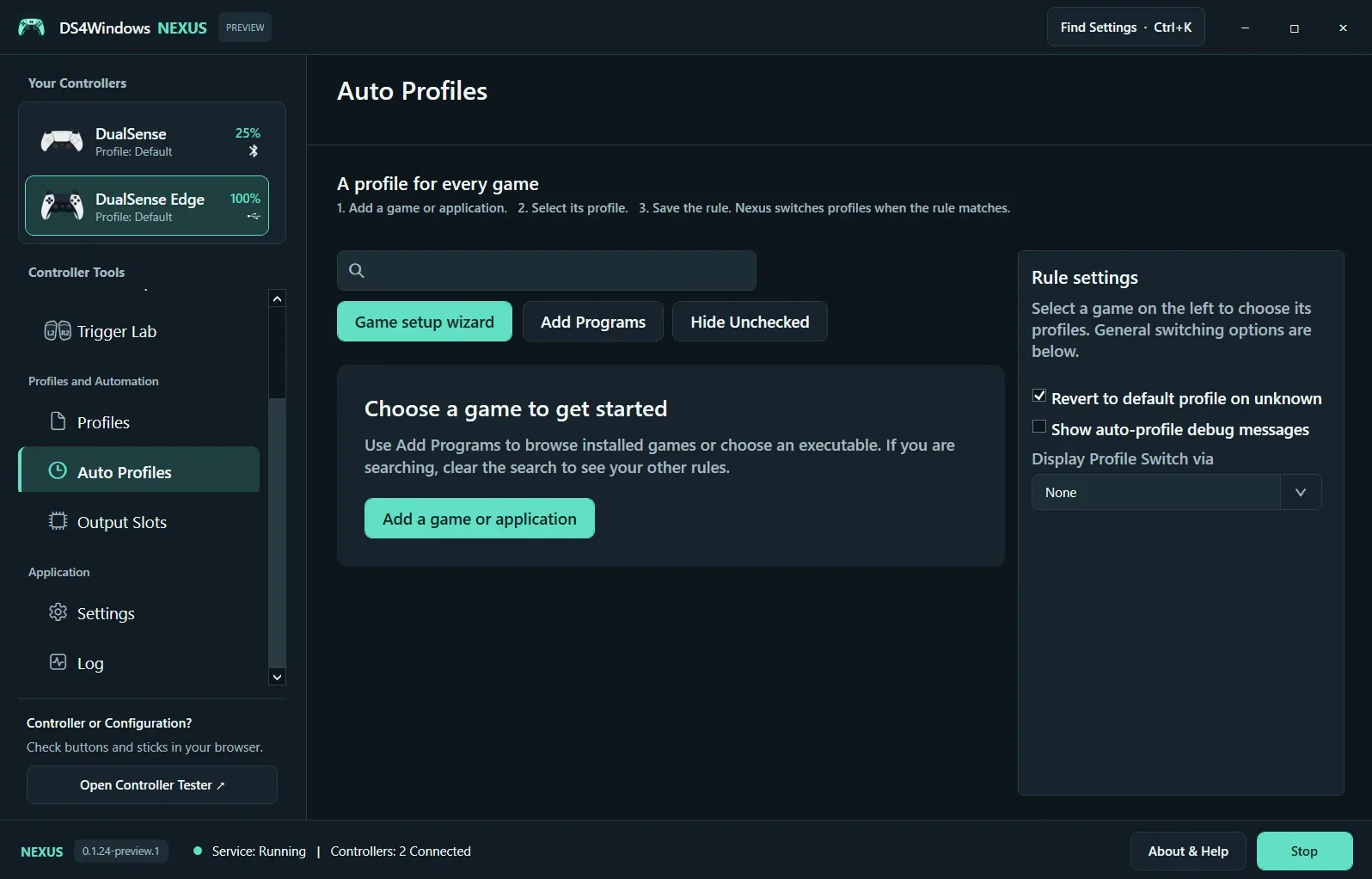
Open Auto Profiles and choose Game Setup Wizard or Add Programs. Select an installed game or browse to its executable. Use the executable that actually runs the game; a launcher can be a different process. Clear the search field if a saved rule appears to be missing.
Assign and save
Select the game in the list, choose its profile and save the rule. Where available, match an executable or window title and assign profiles to individual controller slots. Test by switching focus between the game and another app, then inspect the active profile in Overview.
Decide fallback behavior
Revert to Default Profile on Unknown controls what happens when no rule matches. If a profile seems to change unexpectedly, check this option and overlapping rules. Enable auto-profile debug messages briefly to diagnose a match, then turn them off when finished. Keep separate game profiles when outputs or gyro behavior differ.
Screenshot values are examples, not recommended settings for every controller. Save a separate profile before experimenting.