Select the controller presented to games
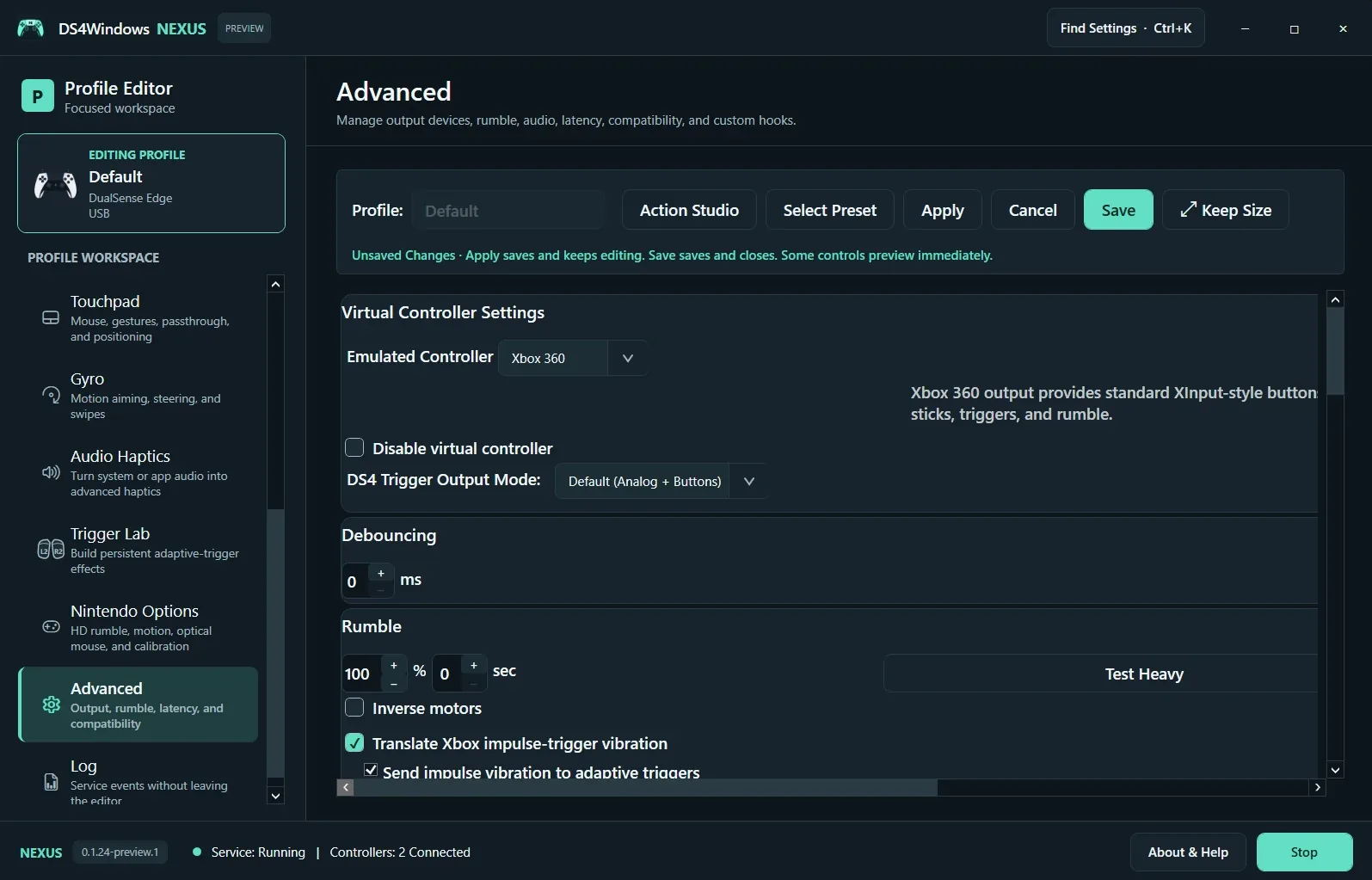
Emulated Controller chooses the virtual device. Xbox 360 commonly provides an XInput-style layout; other outputs expose different capabilities. Disable Virtual Controller stops that virtual output. DS4 Trigger Output Mode applies to the corresponding DS4 output, not to every device type. Change one output setting, save and restart the game if it caches controller devices.
Test feedback separately
Rumble strength, timeout and Test Heavy/Test Light help inspect ordinary rumble. Translate Xbox Impulse-trigger Vibration adapts supported Xbox feedback; Send Impulse Vibration to Adaptive Triggers applies only to hardware that supports it. These are separate from native game-authored adaptive effects and Trigger Lab’s local design.
Use compatibility controls only for a reason
Debouncing filters rapid changes and can alter responsiveness. Game Bar compatibility provides an Xbox-compatible input path while Game Bar is open. Program-launch actions, Bluetooth polling, idle disconnect and mouse options should be changed for a specific need. Keep a working profile to restore, and avoid treating every Advanced option as a performance upgrade.
About this capture
The supplied screenshot shows the earlier layout. The first beta adjusts card spacing, wrapping and viewport sizing on this page. The screenshot is retained as an authentic earlier-build capture; it has not been redrawn to imitate the updated application.
Screenshot values are examples, not recommended settings for every controller. Save a separate profile before experimenting.