Select an output mode
Open Touchpad and choose Output Mode first. Mouse mode reveals pointer and gesture controls. Other modes expose different controls, so a setting may disappear when it does not apply. Work in a duplicate profile when experimenting with a mode you have not used before.
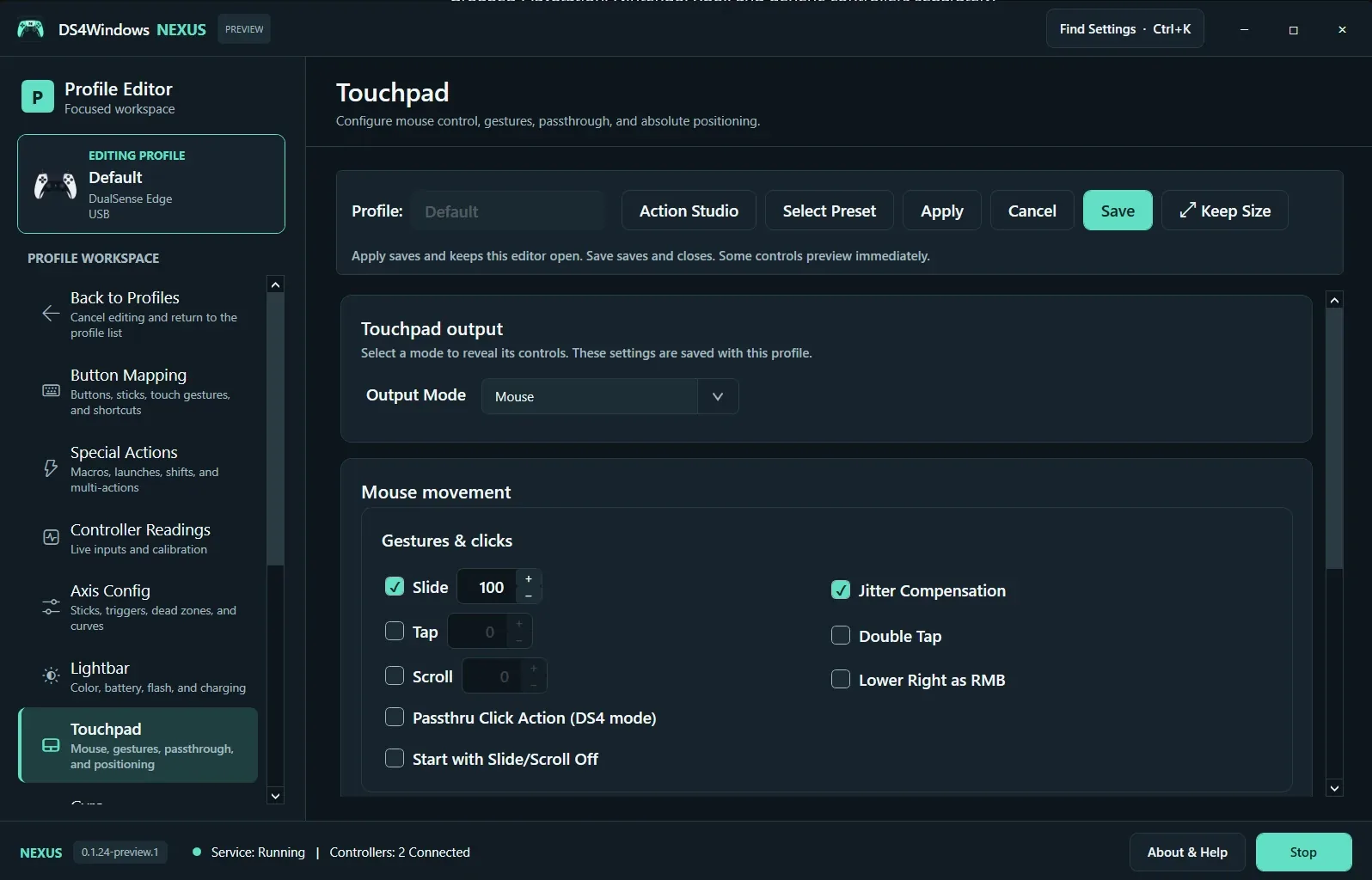
Configure the gestures you use
Slide, Tap, Scroll and Double Tap control distinct interactions. Enable one at a time and test on the Windows desktop. Jitter Compensation can help steady movement; Lower Right as RMB provides a right-click region. Start with Slide/Scroll Off changes initial behavior, so check it if the pointer seems inactive.
Match the game’s expectations
Passthrough click behavior is tied to the relevant virtual output. If a game expects a native touchpad, check the emulated controller and passthrough settings instead of treating every touch as mouse input. Avoid assigning both a gesture and a game action that produce duplicate input. Save and retest after leaving the editor.
Screenshot values are examples, not recommended settings for every controller. Save a separate profile before experimenting.