
Find the relevant event
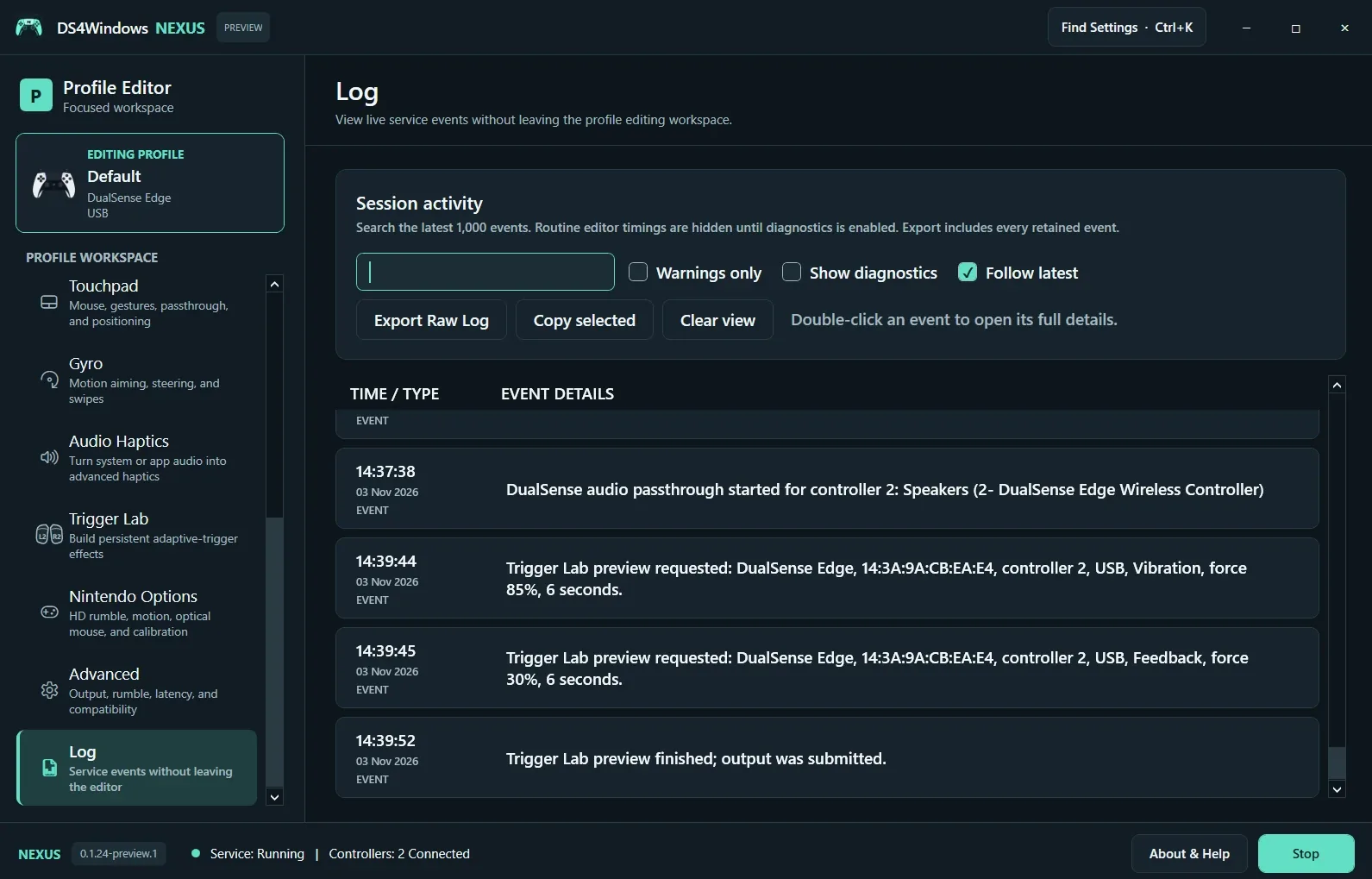
Open Log, search for the time or feature involved, and use Warnings Only to reduce routine messages. Follow Latest keeps the newest entries visible. Double-click an event for details. Enable diagnostics when investigating a specific issue rather than leaving a high-volume capture running indefinitely.
Choose an export
Copy Selected is useful for a small event sequence. Export Raw Log includes retained event details and can contain device identifiers, file paths or application information. Review it before posting publicly. A redacted Controller Health report is preferable when the issue is simply input or connection behavior.
Describe the observed result
Include the Nexus version, Windows version, controller model, USB/Bluetooth connection, virtual output and exact reproduction steps. A Trigger Lab message saying output was submitted describes software activity; tell us whether you felt resistance. Distinguish game haptics, audio-driven grip vibration and adaptive triggers so the report can be reproduced.
Screenshot values are examples, not recommended settings for every controller. Save a separate profile before experimenting.