Connect and select
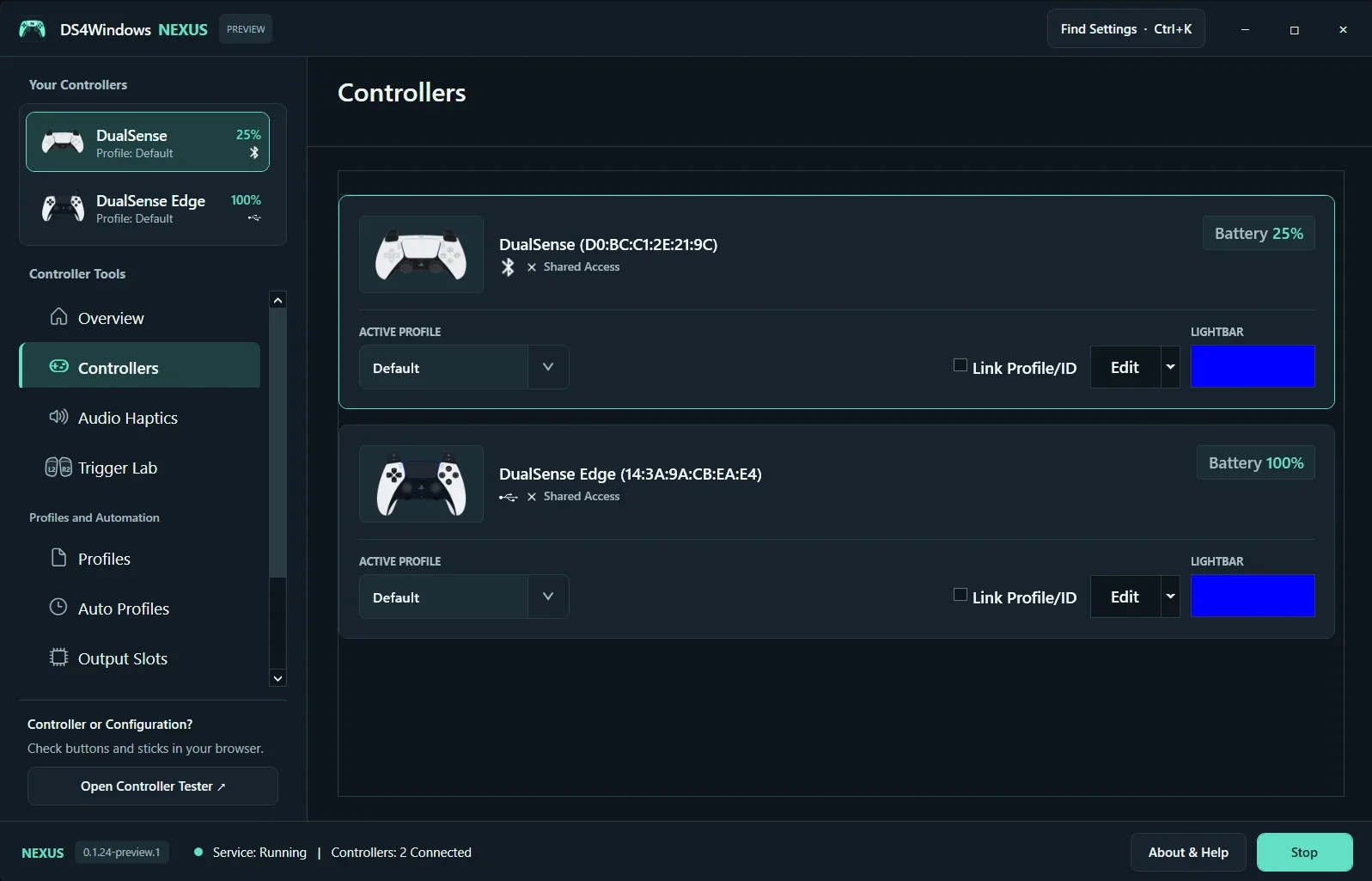
For DualShock 4 use a data-capable micro-USB cable; DualSense and Edge use USB-C. For Bluetooth, turn the controller off, then hold PS + Share on DualShock 4 or PS + Create on DualSense until the light flashes. Add it in Windows Bluetooth settings. Select the matching device card in Nexus.
Assign a saved profile
Choose a profile from Active Profile on the controller card. Edit opens that profile. Back up or duplicate a profile before experimenting. Link Profile/ID associates the selection with that controller identity; check the selected device when you use multiple controllers. Auto Profiles can subsequently change the assignment when a rule matches.
Understand shared access
Shared Access means the physical device may be visible to other software. If a game reacts twice, configure HidHide so Nexus can read the physical device while the game sees the virtual output. Simply installing HidHide is not the same as configuring it. Test one controller in one game after making the change.
Screenshot values are examples, not recommended settings for every controller. Save a separate profile before experimenting.