Create a safe starting point
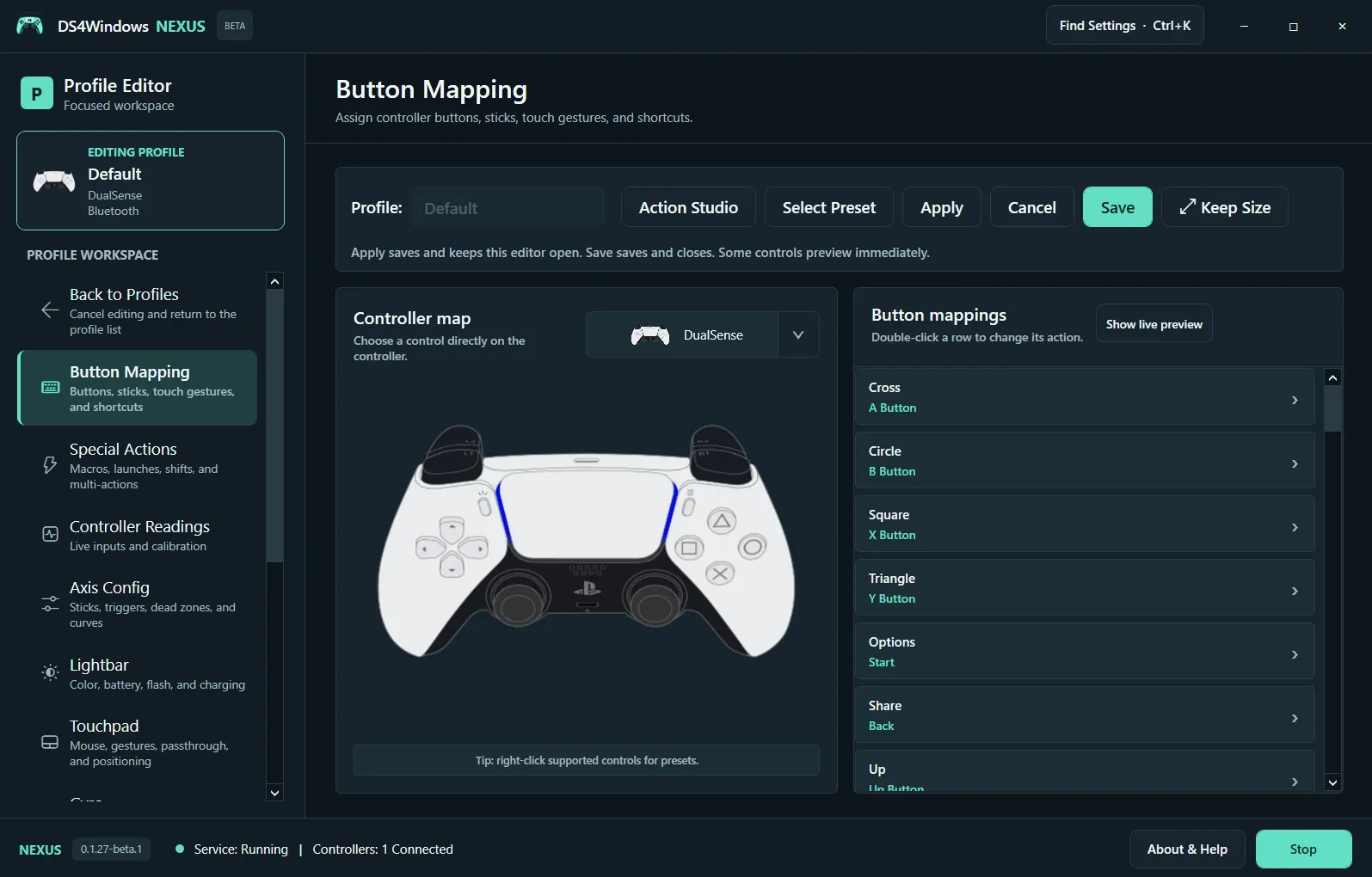
Open Profiles and duplicate a working profile before making large changes. Select the controller, open the profile editor and choose Button Mapping. The controller map lets you select supported controls; double-click a row in Button Mappings to edit its action. Confirm the selected controller model matches the layout you want to edit.
Choose an action
Assign a controller output, keyboard key, mouse action or supported macro. Use Action Studio when you need to inspect base mappings, modifier layers or tap/hold/double-tap behavior. Show Live Preview helps inspect the mapping, but sampled input can miss fast transitions. Check the resulting action inside the target game too.
Apply, Save or Cancel
Apply saves and keeps the editor open. Save saves and closes it. Cancel discards pending profile edits, although some controls take effect immediately while editing. Shared Special Action definitions are stored separately. Compare profiles before assigning an imported profile, and inspect program-launch actions and macros before using another person’s settings.
Screenshot values are examples, not recommended settings for every controller. Save a separate profile before experimenting.