
Measure before changing
Start with Controller Readings and observe both sticks at rest. Duplicate your profile, then open Axis Config. Guided Setup can suggest a radial deadzone from a resting capture. A deadzone can mask small drift; it does not repair worn hardware. Test the suggestion before saving the tuned copy.
Understand the controls
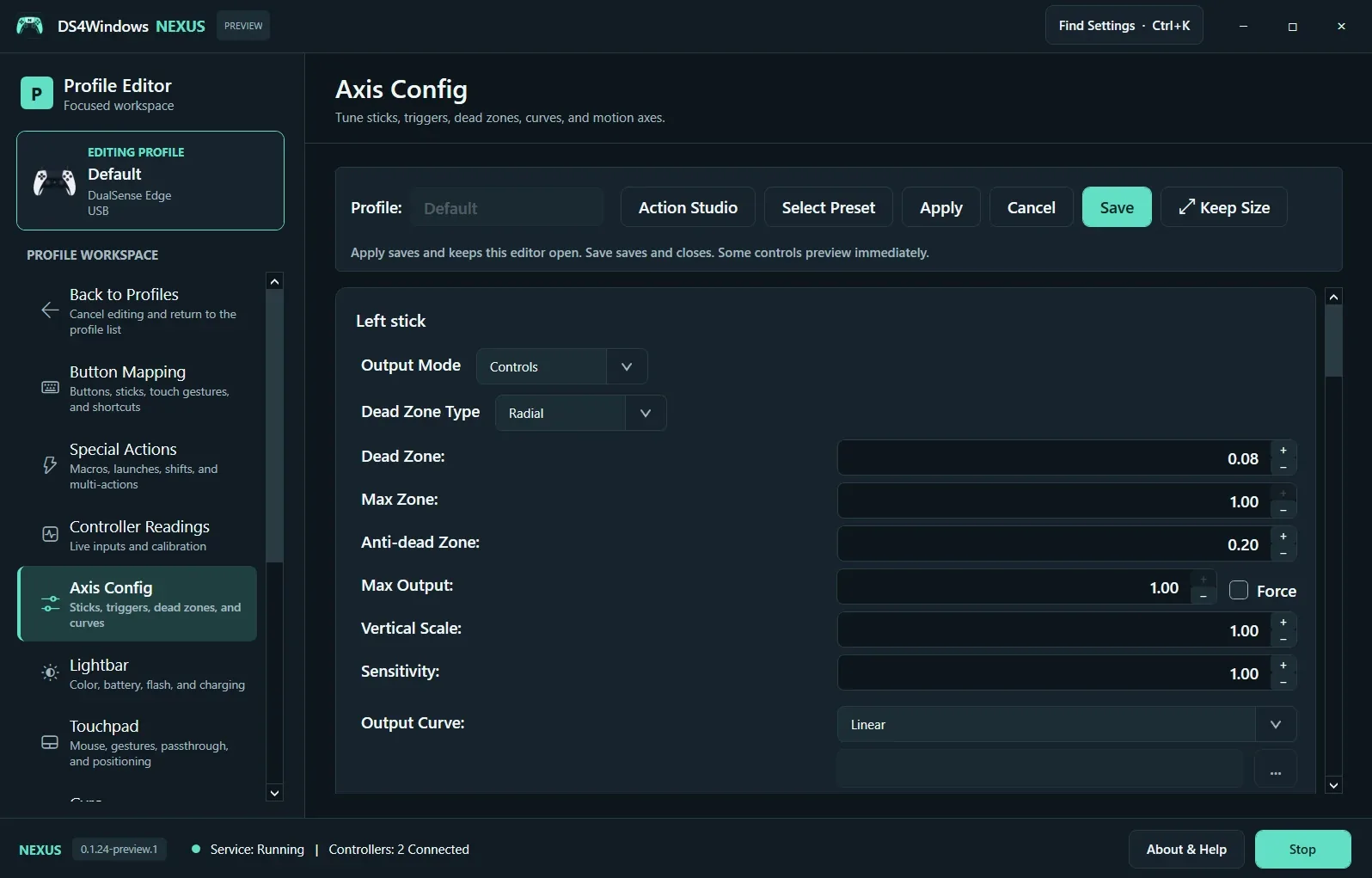
Dead Zone suppresses movement near center. Max Zone sets where full input is reached. Anti-dead Zone adds a minimum output once movement starts and can make aiming jump if set too high. Max Output limits output range. Sensitivity, Vertical Scale and Output Curve alter the response beyond simple drift suppression. These controls interact with the game’s own deadzone and sensitivity.
Tune one variable at a time
Use a simple curve while setting the deadzone. Raise the deadzone only enough to stop unwanted movement, then test fine aiming and full-range turning. Avoid copying the numbers in the screenshot as universal recommendations. Save a separate profile for games with very different response needs and compare the saved profiles before assignment.
Screenshot values are examples, not recommended settings for every controller. Save a separate profile before experimenting.