
Choose your source
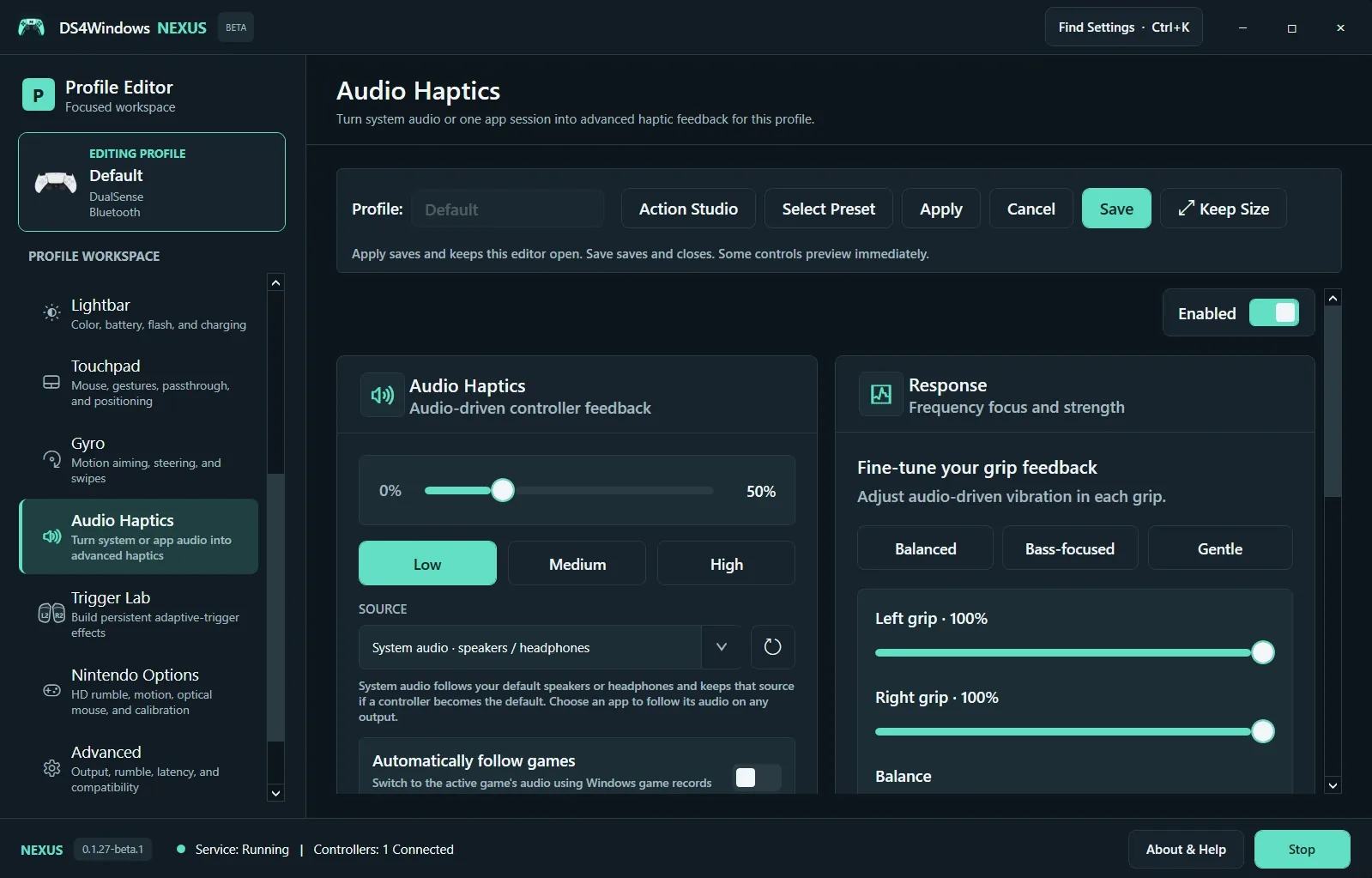
Open Audio Haptics for the selected profile and enable it. System Audio follows the normal speakers or headphones rather than switching to the controller just because it becomes the default device. Choose an app session to follow one application’s audio. Refresh the source list if the app started after you opened the page.
Start gently
Begin with a low strength preset, play a familiar sound and increase strength gradually. Balanced, Bass-focused and Gentle shape the response; left and right grip controls tune each side. Audio-driven vibration is different from game-authored advanced haptics and from adaptive-trigger resistance.
Resolve missing or conflicting feedback
Confirm the selected source is playing audible sound, the physical controller supports the feedback path and the profile is active. Check feedback ownership when combining audio haptics with native game effects. Automatic game following depends on available Windows game records; explicitly choose the app when automatic selection does not find it.
Screenshot values are examples, not recommended settings for every controller. Save a separate profile before experimenting.