Start with DuckStation for a dedicated PS1 setup, or RetroArch if you already use its multi-system library. Compare ePSXe, Mednafen and PCSX-Reloaded below before choosing. PS1 and PSX refer to the original PlayStation in this guide.
Which PS1 emulator should you use?
For a new Windows setup, DuckStation is our first choice for a focused PS1 interface. RetroArch makes more sense if you already keep several systems in one library. ePSXe and Mednafen offer different workflows; PCSX-Reloaded remains relevant when maintaining an existing setup. These are editorial choices based on project documentation, not measured speed rankings.
| Emulator | Choose it for | Main trade-off |
|---|---|---|
| DuckStation | A dedicated PS1 library with accessible configuration | Enhancements still need checking with individual games. |
| ePSXe | A familiar standalone workflow or an existing ePSXe setup | Older tutorials may describe different builds and plugins. |
| Mednafen | A documentation-led, configurable multi-system emulator | Its command-line workflow takes more preparation. |
| PCSX-Reloaded | Maintaining a setup already built around PCSX-R | Check the specific build and platform; it is not our default for a fresh Windows install. |
| RetroArch | One frontend for PS1 and other systems | You must configure both the frontend and a PS1 core. |
1. DuckStation
DuckStation suits someone who wants to manage PS1 games in one dedicated application. Start with its default configuration, add your own BIOS and disc images, and map player one. Once a game runs correctly, try higher internal resolution or other enhancements individually; a sharper image is useful only if the game still behaves correctly.
Use the official download selector for your Windows architecture and follow its current installation instructions. The setup steps below cover the first working configuration.

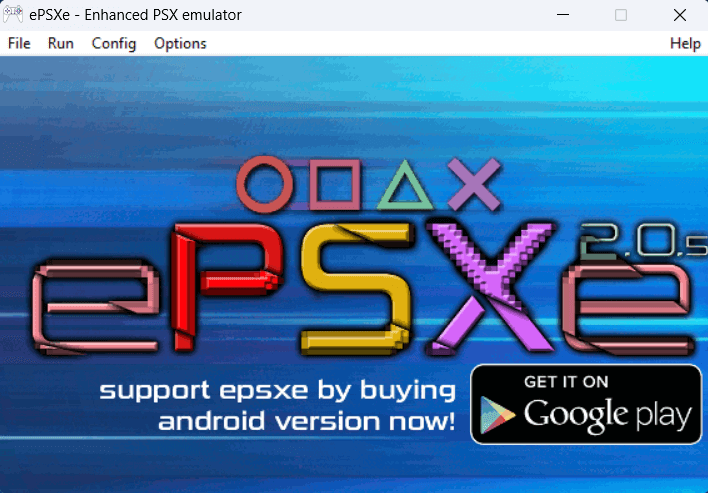
2. ePSXe
ePSXe is worth considering if you already have a working configuration or prefer its standalone setup. Avoid treating every old plugin tutorial as current: check the build you downloaded before changing graphics, audio or controller options.
The project announced Windows version 2.0.18 in December 2025, including CHD support and compatibility fixes. That makes claims that the Windows build has not changed since 2016 outdated. Back up your memory cards and configuration before upgrading an existing installation.
3. Mednafen
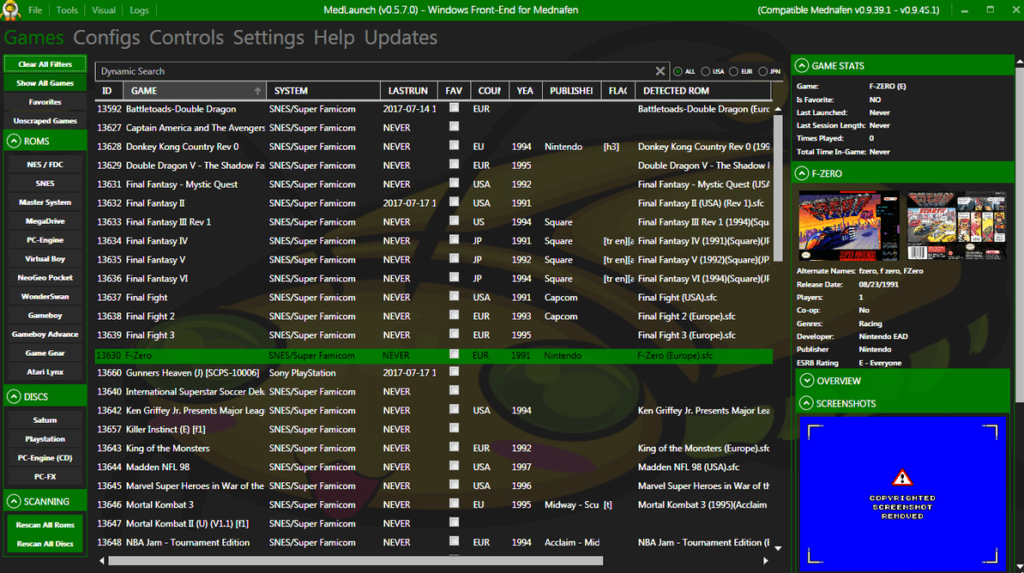
Mednafen is a multi-system emulator with a command-line approach. It is a better fit for someone comfortable reading configuration instructions than someone expecting a guided game-library interface. Its PS1 documentation lists the required BIOS filenames and supported input devices.
Prepare the BIOS in the documented location, launch a complete disc-image set and configure the first controller. Keep cue sheets with their referenced track files. If you use a separate graphical frontend, remember that its menus are not Mednafen’s own interface.
4. PCSX-Reloaded
PCSX-Reloaded, often called PCSX-R, belongs to the original PCSX family. We retain it in this comparison for readers using an existing PCSX-R configuration. For a new Windows installation, begin with DuckStation unless you have a specific reason to use this alternative.
The linked GitHub repository identifies itself as a mirror. Check the origin, date and platform of a build before installing it; a repository mirror is not evidence of a current Windows release. PCSX-Reloaded and PCSX2 are different projects: PCSX2 is for PlayStation 2 games.
5. RetroArch
RetroArch is a frontend; the selected core performs PS1 emulation. Choose it when shared menus and controller settings across several systems matter more than having a dedicated PS1 application. Beetle PSX and Beetle PSX HW have their own documentation and options.
Install a PS1 core, place the required BIOS files in the configured system directory and load a supported disc image. Then check both the frontend’s controller assignment and the core’s emulated controller type. Keep overrides scoped to the game or core so a PS1 change does not disrupt another system.
Set up DuckStation on Windows
- Download the right build. Open DuckStation’s official site and select the Windows package that matches your PC. Follow the requirements shown for that download.
- Install or extract the whole archive. Keep the application and its dependencies together. Start DuckStation and follow its setup wizard.
- Select your BIOS and games. Point the wizard at a BIOS dumped from your console and a folder containing your own disc images. BIOS files and games are not included with the emulator.
- Map the controller. In Settings → Controllers, select the connected device and check the bindings. Test the D-pad, face buttons, sticks and Start before launching a game.
- Establish a baseline. Start at default settings. Make an in-game save, close the game and confirm you can load it again. Only then raise rendering resolution or enable enhancements.
For RetroArch, follow the Beetle PSX HW core documentation instead: its system-directory files, core options and disc switching are separate from DuckStation’s settings. A configuration written for one application should not be copied blindly into the other.
Use DualShock 4 or DualSense with PS1 games
Connect by USB first to simplify troubleshooting. If the emulator reads the physical controller correctly, you can use that input directly. Nexus is useful when you want a reusable remap or an emulated output; it is not a mandatory PS1-emulation component.
- Choose one input path: the physical controller, or the virtual controller created by Nexus.
- If using Nexus, select your physical controller in the sidebar, apply a dedicated profile and confirm its output is connected.
- Bind that same device to player one inside the emulator. Close overlapping remappers while establishing the mapping.
- If a button is applied twice, inspect the selected devices before changing deadzones. Do not assign both the physical pad and its virtual counterpart to one player.
A modern controller does not make every PS1 title analog-aware. If a game ignores the sticks, check the emulated controller type and the game’s controls. Test basic input in our gamepad tester first; browser success does not certify emulator configuration.
Fix the first problem before tuning the picture
| Symptom | Useful next check |
|---|---|
| BIOS not found | Confirm the configured BIOS folder and that the dump is valid. A ZIP containing a BIOS is not necessarily a usable extracted BIOS file. |
| A disc image fails to start | Check the complete image set and cue-sheet references. Keep original filenames together; do not rename only one member of a multi-file dump. |
| Game starts but controls do not | Check player-one bindings and controller type. Reconnect the device, then reselect it if its identifier changed. |
| Missing save after a change | Check the active memory-card configuration and game region. Back up saves before experimenting with per-game cards. |
| Visual glitches after enhancements | Return the affected game to defaults, then re-enable one enhancement at a time. |
Keep ordinary in-game saves as well as optional save states. Before an emulator update, close the application and copy its save/configuration folders to a dated backup. Record the game region and settings if you report a problem.
Common questions
Not if the emulator already reads your controller correctly. Use Nexus when you need its mappings or virtual output, and bind only that chosen input path.
No. Use your own console and game dumps, following the emulator’s documentation.
Start at defaults. Improve resolution gradually and keep per-game changes separate so you can reverse a problematic setting.
In emulator searches, PSX usually refers to the original PlayStation, also called PS1. The options on this page emulate that console; they do not run PS2, PS3, PS4 or PS5 software.
Memory-card files and save states are different. Check whether the destination supports your memory-card format and use its import tool when available. Do not expect a save state from one emulator to load in another. Keep an untouched backup before converting anything.
Official sources
Use the project or manufacturer’s current documentation for downloads, requirements and model-specific details.